
Elastic Email Integration
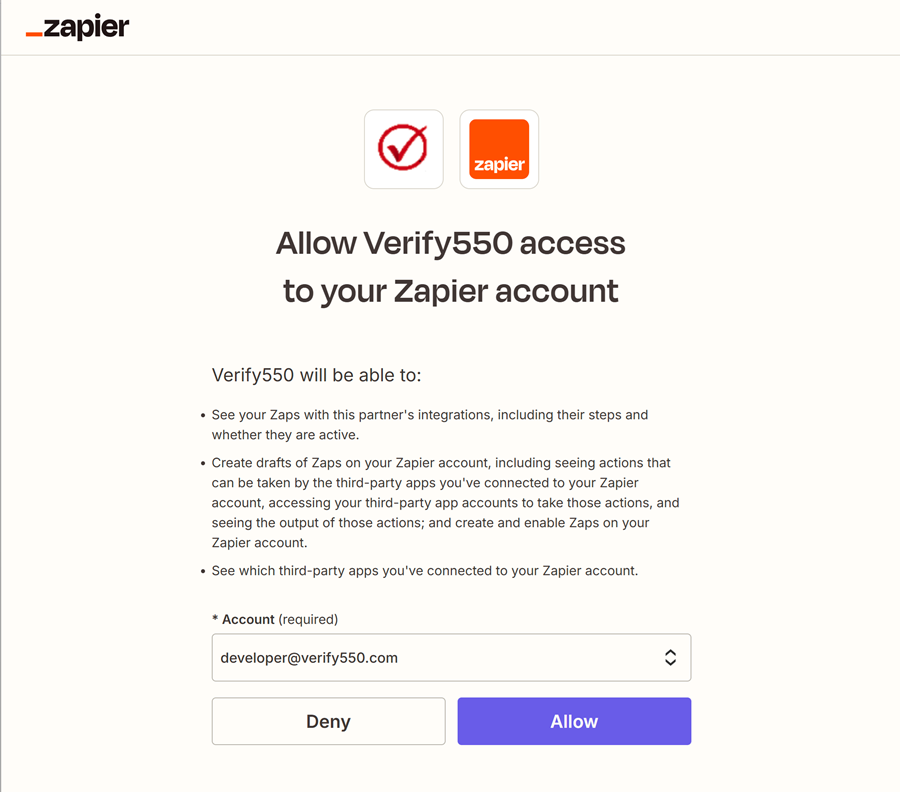
Authorize in Zapier
Allow Verify550 to access your Zapier account so it can integrate with Elastic Email.
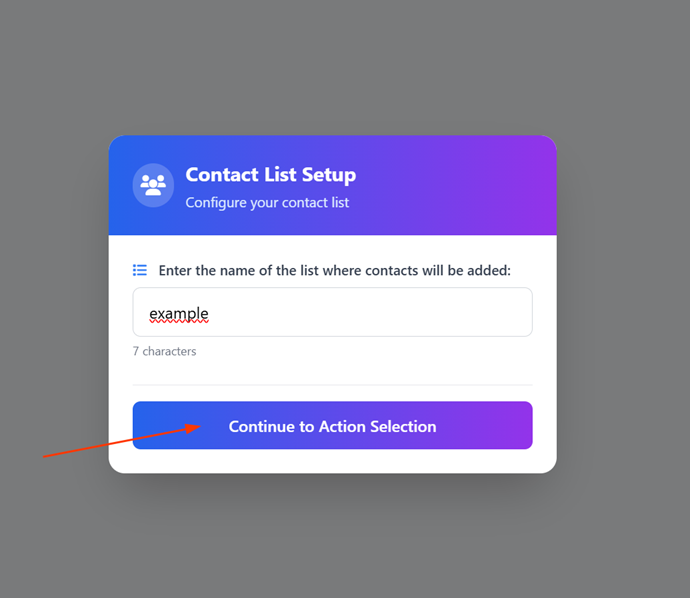
Selecting the list
Since this is a required field in the trigger for the Elastic Email application, include the list to which contacts will be added. You can create multiple integrations with different lists if needed.
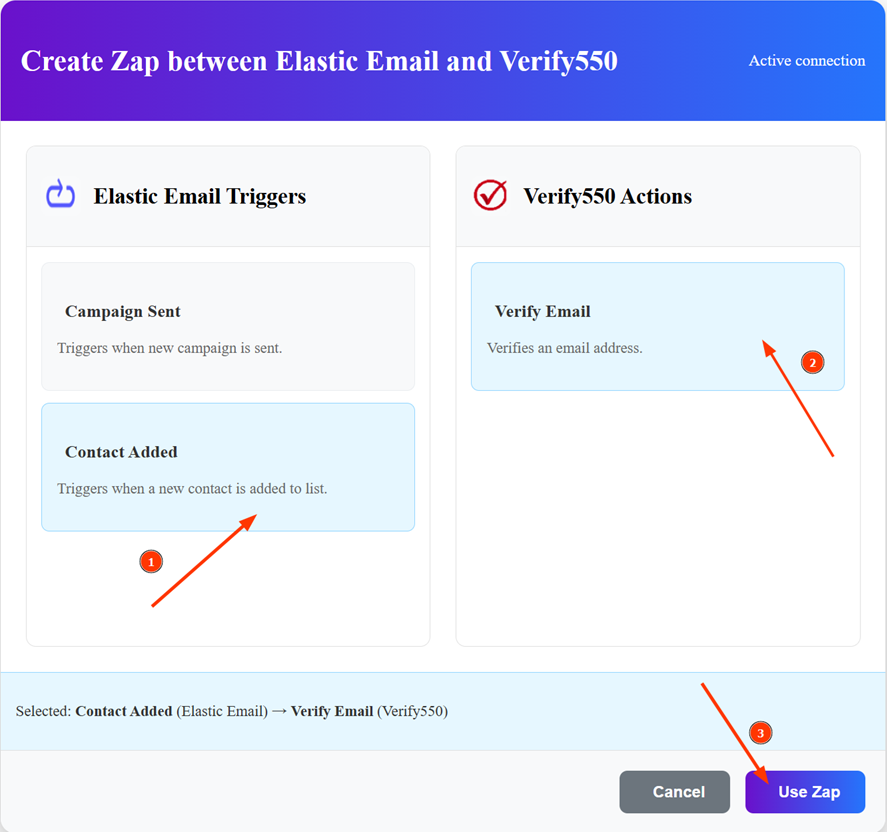
Set up the Zap
Choose an Elastic Email trigger (e.g., Create Contact) and connect it with the Verify550 action (Verify Email).
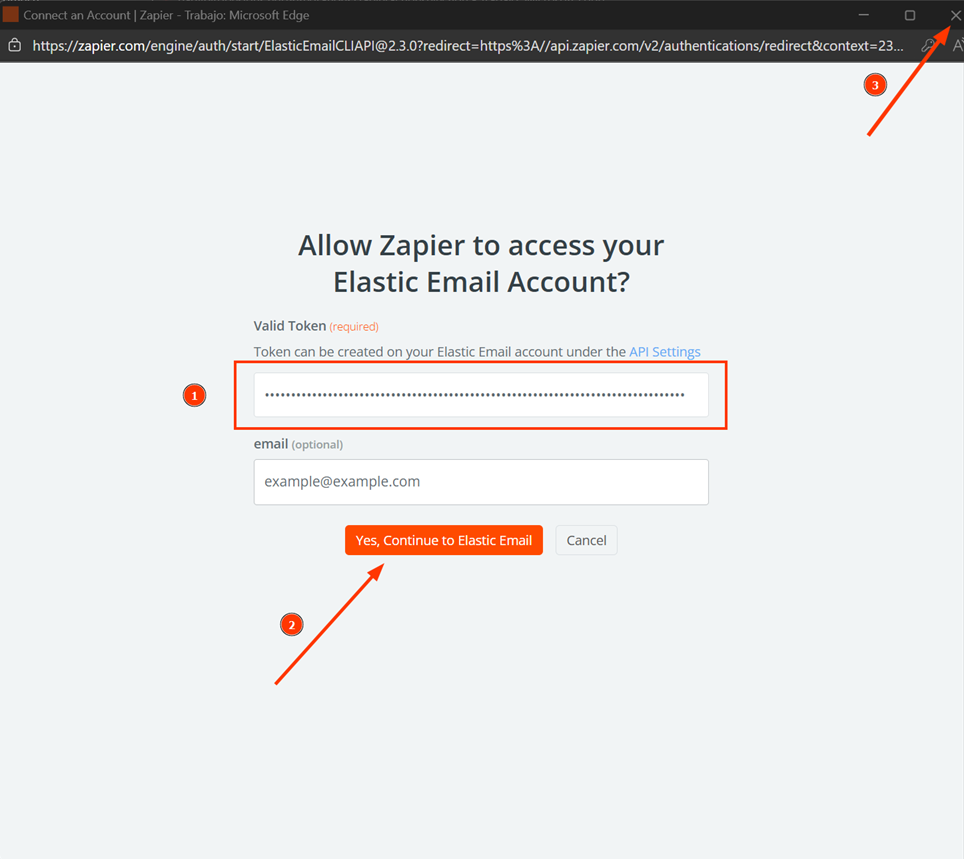
Log in to Elastic Email
Connect to your Elastic Email account using your API key. After filling the required fields in the pop-up and creating the authentication, close it so the application can continue with the Zap creation process.
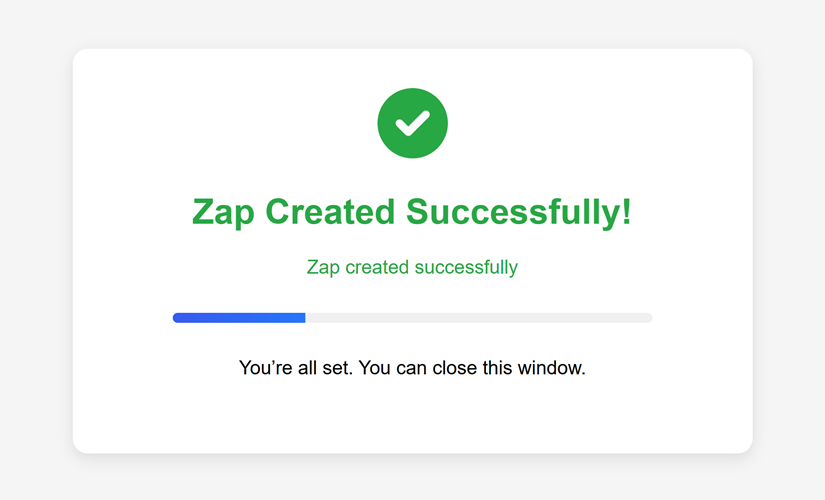
Zap created successfully
Once authenticated, the Zap will be created in your account and ready to validate Elastic Email contacts in real time.