
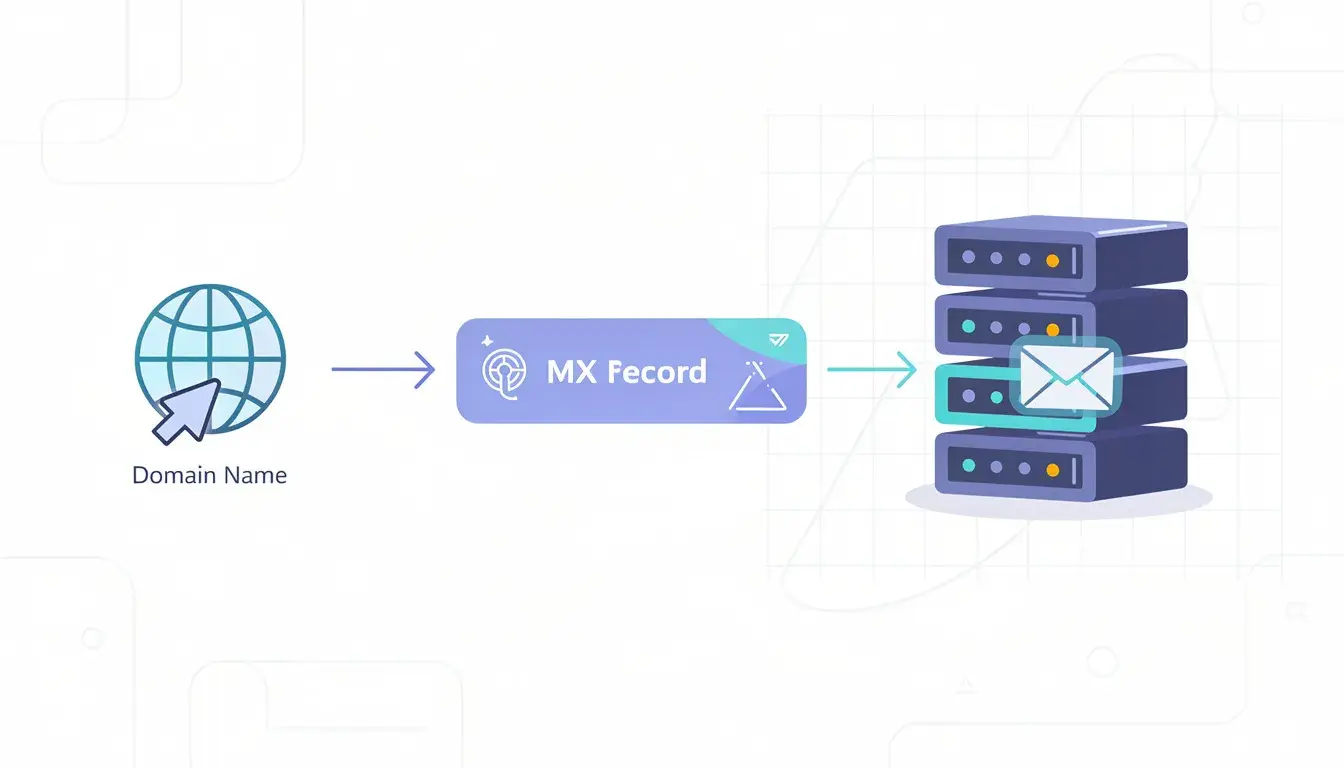
Email issues have a way of showing up at the worst time. You set up a new inbox, connect a sending tool, or move DNS, and suddenly messages bounce or disappear. That’s where we need to find MX record and confirm where your domain is accepting mail.
In this guide, we’ll help you check the record the right way, read what it’s telling us, and spot the mistakes that quietly break delivery. By the end, you’ll know exactly what to look for and what to fix, without guessing.
What You’re Really Doing When You Find MX Record
When you find an MX record, you’re not “checking email.” You’re checking where your domain tells the world to deliver mail.
MX Records In Simple Words
An MX record is a mail exchange record. It’s a DNS setting that acts as a record type under your DNS records.
It tells anyone sending email messages to your particular domain which mail servers should accept them.
Think of it like a delivery address. If the address is wrong, the mail won’t reach the correct mail server, even if everything else looks fine.
This is why MX matters so much for email routing. One small mismatch can send mail to the wrong place, or nowhere at all.
How Mail Servers Decide Where To Deliver
Most domains use multiple MX records on purpose. It gives you redundancy and flexibility.
Each MX entry includes a priority number. The one with the lowest priority gets tried first.
If that destination doesn’t respond, the sender tries the next option. That fallback behavior is what keeps inbound mail working during outages or provider changes.
The Fastest Way to Find MX Records Online
If you want speed, start with an online check. It’s the quickest way to confirm what the outside world can see right now.
Using An MX Lookup Tool Without Getting Misled
A quick MX record lookup usually takes seconds.
You enter the domain, run the MX lookup, and you’ll see the MX hostnames and their preference values.
This is also a simple way to check MX records after you switch an email provider or adjust DNS.
Just remember, some tools show cached results. That can hide fresh changes.
Cross-Checking So You Trust The Answer
When the output looks odd, we validate it with a second dns lookup.
We also make sure we’re reading the domain’s authoritative DNS, not a random cached resolver.
If two independent checks agree, you can trust the result. If they don’t, you’ve likely hit caching, a stale resolver, or a misconfigured DNS zone.
How to find MX record with Command-Line Checks
Online tools are fast, but command-line checks give you more control. When you’re diagnosing email delivery issues, that control matters.
We’ll use simple steps on the OS you already have. You can run the commands in under a minute once you know where to look.
Windows: Nslookup Walkthrough
On Windows, open the command prompt and run a DNS query that asks for MX records for your given domain.
The command performs the lookup and shows which email servers are configured to handle receiving email messages.
If you also see other DNS details like the soa record in the output, don’t panic. We’re focused on the MX answers and their order.
If the results look wrong, repeat the command using a different resolver. That helps you confirm whether you’re seeing cached data from the internet or the live records.
Mac/Linux: Dig Walkthrough
On Mac or Linux, open the terminal and use dig to perform the same check.
Mac os and macOS behave the same here. You run one command, and the MX list appears instantly.
The key detail is that MX records must point to a canonical name, not a raw IP. That name should resolve to a real mail host through A or AAAA records.
If you’re cross-checking, run the dig lookup twice, then compare what you see.
Read Your MX Results Like You Actually Mean It
This is the part most guides skip. Reading the output correctly is what prevents bad changes.
We’ll focus on the few signals that reliably explain what’s happening with delivery.
Priority, Hostnames, And The “Lower Wins” Rule
MX records are ranked by priority. Lower numbers get tried first, which means they have higher priority in real delivery behavior.
If your top MX server is down, senders move to the next entry. That’s your backup path working as designed.
If two records show the same priority, many systems will treat them as equal. That can be useful, but it can also create confusion if the servers are not meant to share traffic.
Multiple MX Records, Backups, And Load Spreading
Multiple MX records can support load balancing when your provider expects it and the records are set up intentionally.
But if you mix providers, you can end up splitting mail across unrelated systems. That causes missed messages, misrouted inboxes, and inconsistent filtering.
If you’re not sure why you have multiple records, don’t delete anything yet. First, identify which service owns each hostname and what the intended setup should be.
Fix The Most Common “MX Record” Problems
Once you can read the results, fixing them is usually straightforward. The trick is to follow a clean troubleshooting process so you don’t break something that was quietly working.
Most problems come from editing the wrong place, copying the wrong value, or assuming changes are live when they are not.
“No MX Record Found” And Other Scary Messages
If a tool says nothing exists, it usually means your DNS setup doesn’t include an MX entry, or the zone you edited is not the one that actually serves your domain.
Start at your DNS provider’s website and open the DNS management page for your domain. Then select the record list and look for MX entries.
If your email service gave you an example record, match it carefully. One extra dot, a missing host, or incorrect priority can break delivery.
If you still see nothing, ask a simple question: Are you editing the domain registrar, or the DNS host that actually specifies your live records?
“I Updated It… Why Isn’t It Working?”
This is the most common frustration. You update records, click save, and expect it to be achieved instantly.
But DNS changes take time to spread, and some lookups keep old answers cached.
If you used an old template, replace it with the exact values your email provider requires. Double-check spelling and hostnames.
Also, think about security. If your mail is routing correctly but messages still fail, you may be dealing with authentication or filtering issues, not MX itself.
The safest approach is to verify each change step-by-step and confirm what the outside world sees before you move on.
MX Record Lookup: Your Next Steps
Now you know how MX works, how to find the record, and how to interpret what it’s telling you. That puts you ahead of most people who change DNS and hope for the best.
If you want to move faster, document your current setup before changes. Keep screenshots of the DNS page and note which provider owns each record.
When you’re ready to validate everything end-to-end, a simple verification checklist makes it easy to confirm mail flow, avoid mistakes, and keep your setup secure.
If you’d rather not do the checks manually, our website can help you verify your setup from one account, without overcomplicating the basics.